Creating Fields
To open field list window:
- Click "Design" from main menu, select "Catalogs". Select the catalog you wish to create fields for, click "Fields" button.
or
- Right click a catalog from catalog tree, a popup menu will open, select "Fields".
or
- While you are displaying any record, click "config" button from toolbar of the record window, select "Fields".
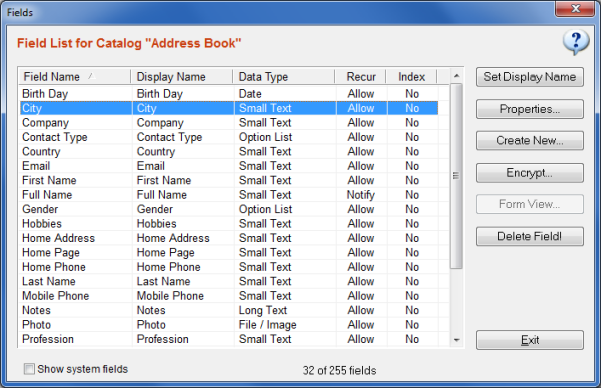
Creating New Fields & Data Types
Click "Create New" button to open Create Field Wizard.
Field Name: Type the name of the field into the box. For example, if you are creating fields for "People" catalog,
you may wish to create fields like "Name Surname", "E-Mail", "Phone" etc. You are recommended to choose a name
which describes the information it will hold as clear as possible.
Display Name: The display name of the field is identical to the field name once a field is created. Whenever you want to
change the field headers shown on record forms, record listings, reports etc. you are recommended to change the "display name"
instead of original name.
Data Type: SpeedBase supports different types of fields depending on what type information is to be stored.
This should be selected with care as you cannot change the data type of an existing field later.
Available data types are as follows:
Small Text
Saves up to 255 characters of text. You may use this data type to save titles, names, short descriptions, web links, emails or phone numbers.
See Text Fields for more information.
Long Text
Saves up to 256 KB characters of text, used to save long descriptions or notes where the text may longer than the limit of a small text area.
See Text Fields for more information.
Integer:
Saves positive or negative integer numbers that do not exceed approx. 2 billion.
See Numeric Fields for more information.
Decimal:
Saves decimal numbers having up to 16 digits on left and up to 8 digits on right side of the decimal point.
See Numeric Fields for more information.
Computed:
This is a special field type which is capable of executing calculations or runnning scripts using data on other fields.
See Computed Fields for detailed information about
various calculation features and examples.
Date:
Saves date information in one of the three available formats with optional reminder function.
See Date/Time Fields for more information.
Time:
Saves time information in hh:mm format.
See Date/Time Fields for more information.
DateTime:
Saves date and time information in one of the three available formats with optional reminder function.
See Date/Time Fields for more information.
Checkbox:
Saves status information with two options only (like yes/no, exists/empty etc).
See Check Box Fields for more information.
Option List:
Saves property information to select from multiple choices (like colors, sizes etc).
See Option List Fields for more information.
System User:
Saves owner of the current record. Available in a multiuser environment (Teamwork Edition) only.
See System User Fields for more information.
File / Image:
Saves files or images with the option of displaying images.
See File & Image Fields for more information.
Relational Lookup:
This field is an automatically generated field when you create a relationship between catalogs.
See Creating Relationships for detailed information about relationships.
Common Field Properties
Default Value: Sets the default value inserted automatically whenever you open the record form to create a new record.
Allow Duplicate: Select whether two distinct records of this catalog may have the same data in this field. If you disallow
duplicates, SpeedBase will show a warning message and refuse to save the current record if duplicates are found.
If you select "Allow w. Warning" instead, a duplicate warning icon will be displayed but the user will be allowed to save the record.
Text Filter: Select the appropriate value here. This helps SpeedBase to display and handle the information optimally.
Text Prefix/Suffix: SpeedBase can automatically display a text piece like currency symbols before and after a numeric value.
This option is available for numeric fields only.
Required: If checked, the user will be required to enter data to this field before he/she can save the record.
Encrypt Data: If checked, data entered into this field will be encrypted.
This option is only available when the encryption feature is enabled from preferences window.
This feature also can only be activated during creating a new field. Once the field was created this setting cannot be changed.
Displaying New Fields In Record Forms
Beware that a newly created field will not automatically appear on the record form!
You must add the new field into the record form by using "Form Designer".
See Designing Data Forms for more information.
Form View
This button is available and effective only if you have placed a field of type 1-N relationship (related record list) into the form
by using form designer.
It allows you to create and customize the view of this record list.